Managing Sites on Your License
The DJIA License Portal allows you to manage your plugin license, download the latest version of DJIA Cache, and control which websites are activated on your license.
You can access the portal here:
From this dashboard you can:
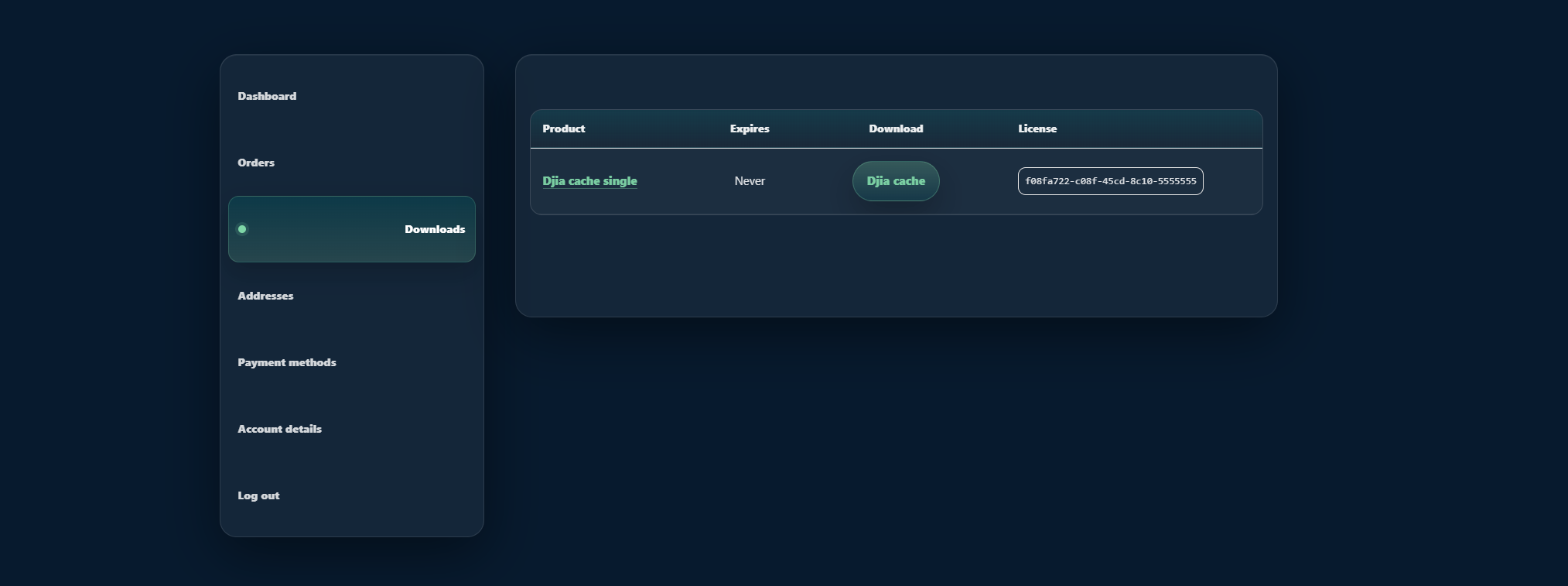
- download the latest plugin version
- view your license key
- see all activated websites
- deactivate sites
- activate the license on new websites
Accessing the License Portal
To manage your license, log in to the DJIA portal.
Steps
- Visit the DJIA license portal:
https://djia.biznis.co.rs/my-account/
- Log in using the account you used to purchase the plugin.
- Open the Licenses section of your dashboard.
Here you will see:
- your license key
- the number of allowed sites
- a list of activated domains
Downloading the Plugin
You can always download the latest version of DJIA Cache from the portal.
Steps
- Log in to:
https://djia.biznis.co.rs/my-account/
- Go to the Downloads section.
- Locate DJIA Cache.
- Click Download to download the latest plugin ZIP file.
You can then install the plugin in WordPress.
Installing the Plugin
After downloading the plugin:
Steps
- Go to your WordPress dashboard.
- Navigate to:
Plugins → Add New → Upload Plugin
- Upload the DJIA Cache ZIP file.
- Click Install Now.
- Activate the plugin.
Activating the License
Once the plugin is installed, activate your license.
Steps
- Go to:
Settings → DJIA Cache → Licence
- Enter your License Key.
- Click Activate Licence.
The plugin will verify the key with the DJIA licensing server.
Once activated, you will receive:
- plugin updates
- access to licensed features